Wix Countdown Timer: 3 Ways to Add One, Including a Free Evergreen Timer

In this article
- Which Wix countdown timer do you need?
- Method 1: Wix’s built-in options and their limits
- Method 2: a free countdown timer on Wix with Boost
- A countdown bar on every Wix page
- Method 3: Wix App Market countdown apps
- Timer ideas for Black Friday, Christmas and launches
- Make it work on mobile
- Wix countdown timer not showing
- Add a free countdown timer to your Wix site
- Frequently asked questions
Wix’s help centre documents one built-in countdown, and it sits inside Wix Events: the event list can count down to the start of an event. For a sale, a launch or a deadline that is different for each visitor, you add the timer yourself.
There are three ways to do it. Use the Wix Events countdown when the thing you are counting to is an event you run through Wix. Paste a free timer into an HTML embed when you want a fixed-date or evergreen countdown anywhere on a page, or a countdown bar across the whole site. Or install a countdown app from the Wix App Market. Each one is below with its steps and its limits, and the last sections cover phones and a timer that does not show.
One disclosure: ProveSource Boost, the free timer in method 2, is our product. Method 1 needs nothing from us. The editor steps come from Wix’s own help articles, read on 23 November 2026.
Which Wix countdown timer do you need?
| Option | Price | Fixed date | Evergreen | When it reaches zero | Where it shows |
|---|---|---|---|---|---|
| Wix Events countdown | Included with Wix Events | The event’s start only | No | Not stated in Wix’s help article | In the event list |
| ProveSource Boost | Free for 3 widgets and 1,000 views a month. Pro $24 a month | Yes | Yes, 1 minute to 30 days per visitor | Shows your message or hides | In an HTML embed where you place it, or as a bar on every page |
| Countdown Timer by POWR | Free plan with 1 counter per site. Three paid plans add counters and features | Yes | Per-visitor control is listed on its Pro plan | Not stated on its listing | A bar at the top or bottom of the site |
| Profy Countdown Timer Bar by Apps Jar | Free plan with 1 countdown timer. Premium has unlimited timers | Yes | A fixed duration that can restart. Per-visitor timing is not stated | Not stated on its listing | A sticky bar at the top or bottom, or a section of a page |
App plans and features were read on each app’s Wix App Market listing on 23 November 2026. The listings show paid prices in your local currency, so check them there.
Method 1: Wix’s built-in options and their limits
The Wix Events countdown
If you sell tickets or take RSVPs through Wix Events, the event list already has a countdown. Wix’s steps for the Wix Editor:
- In the editor, click Pages & Menu, then Event Pages, then your Events page.
- Click the Event List element, then Settings.
- Open the Display tab and switch on Countdown, which shows a countdown until the event starts.
- Open the Design tab to change the countdown’s text, colors, border and corners.
Wix documents this in Customizing the Event List, with tabs for the Studio Editor and the Harmony editor, and notes that the options you see depend on what you picked in the other tabs of the Settings panel. The countdown runs to the start of an event in Wix Events. You cannot point it at the end of a sale or put it next to a product’s price.
No countdown for a sale in Wix Stores or Wix Promos
Wix answers this one itself. Its help page on limited time offers says a promotion with a countdown clock is currently not possible in Wix Promos. It is a feature request you can vote for.
A Wix Stores automatic discount can end on schedule. The discount settings have a “Set an end date and time” checkbox, and that article describes no clock that shows shoppers when the discount ends. So the discount stops on time, and nothing on the page tells the shopper it is about to.
The Custom Element is for developers
Wix also has a Custom Element, and its help article lists “countdown animation” among the things you could build with one. It takes a JavaScript file that you write and host, and Wix’s article says the site needs a Premium plan, a connected domain and no Wix ads. If you do not write code, skip it.
Method 2: a free countdown timer on Wix with Boost
The way to put any third-party widget on a Wix page is the HTML embed. Wix’s article on it describes the embed as the way to show a widget from a code snippet, and it lists no plan requirement. A Boost countdown timer is two lines of code, so it fits.
Create the timer: fixed date or evergreen
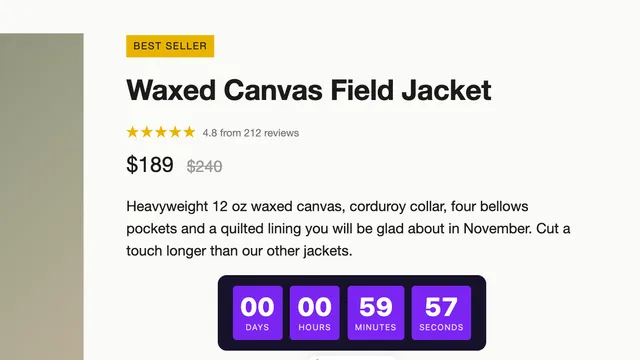
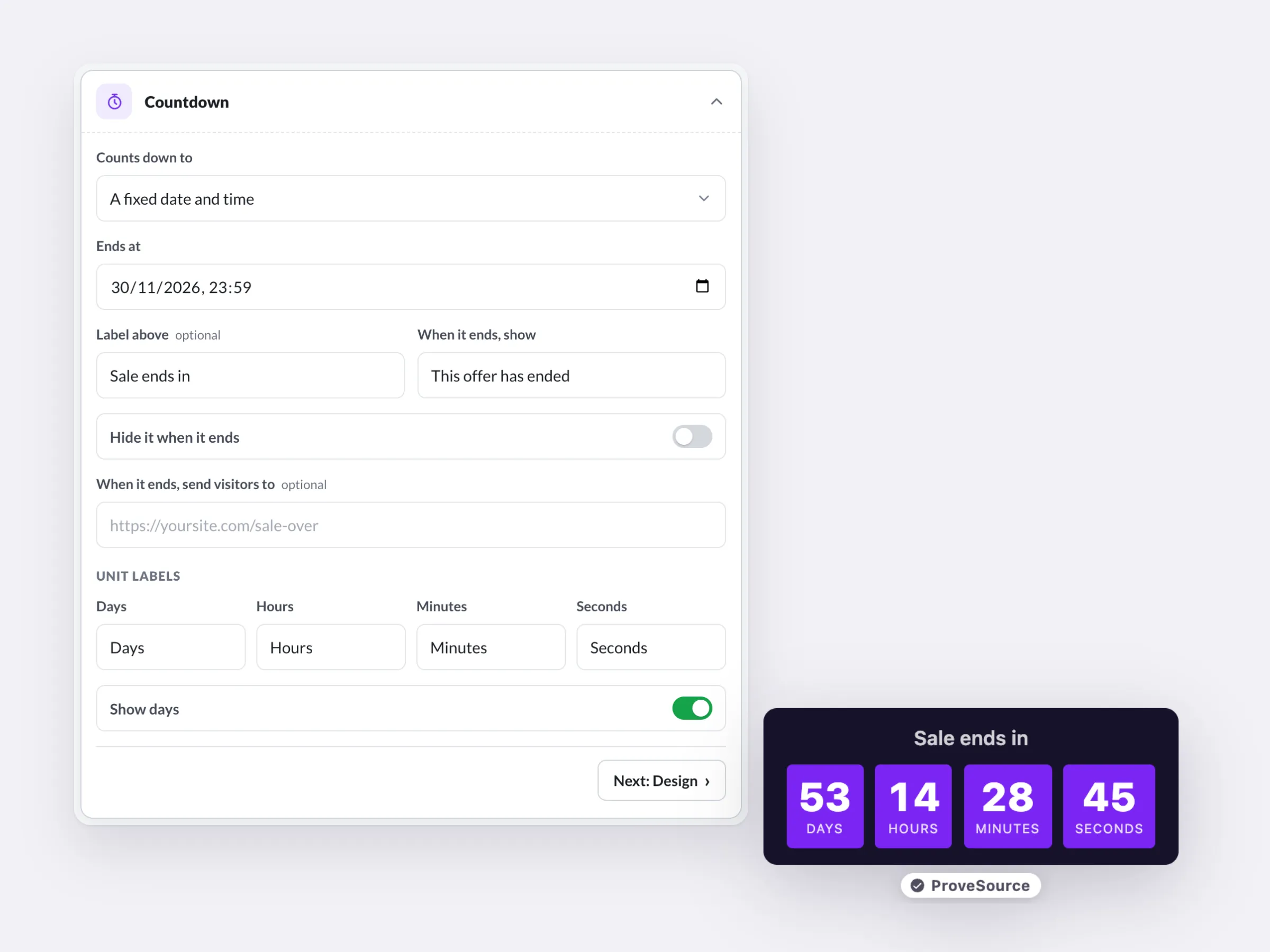
Create a countdown timer in Boost. Pick boxes, plain digits or a flip clock and set your colors. Under Counts down to choose one of two modes:
- A fixed date and time for a sale, a launch or an event. You enter the date in your own time zone and the timer ends at that one moment for every visitor, wherever they are.
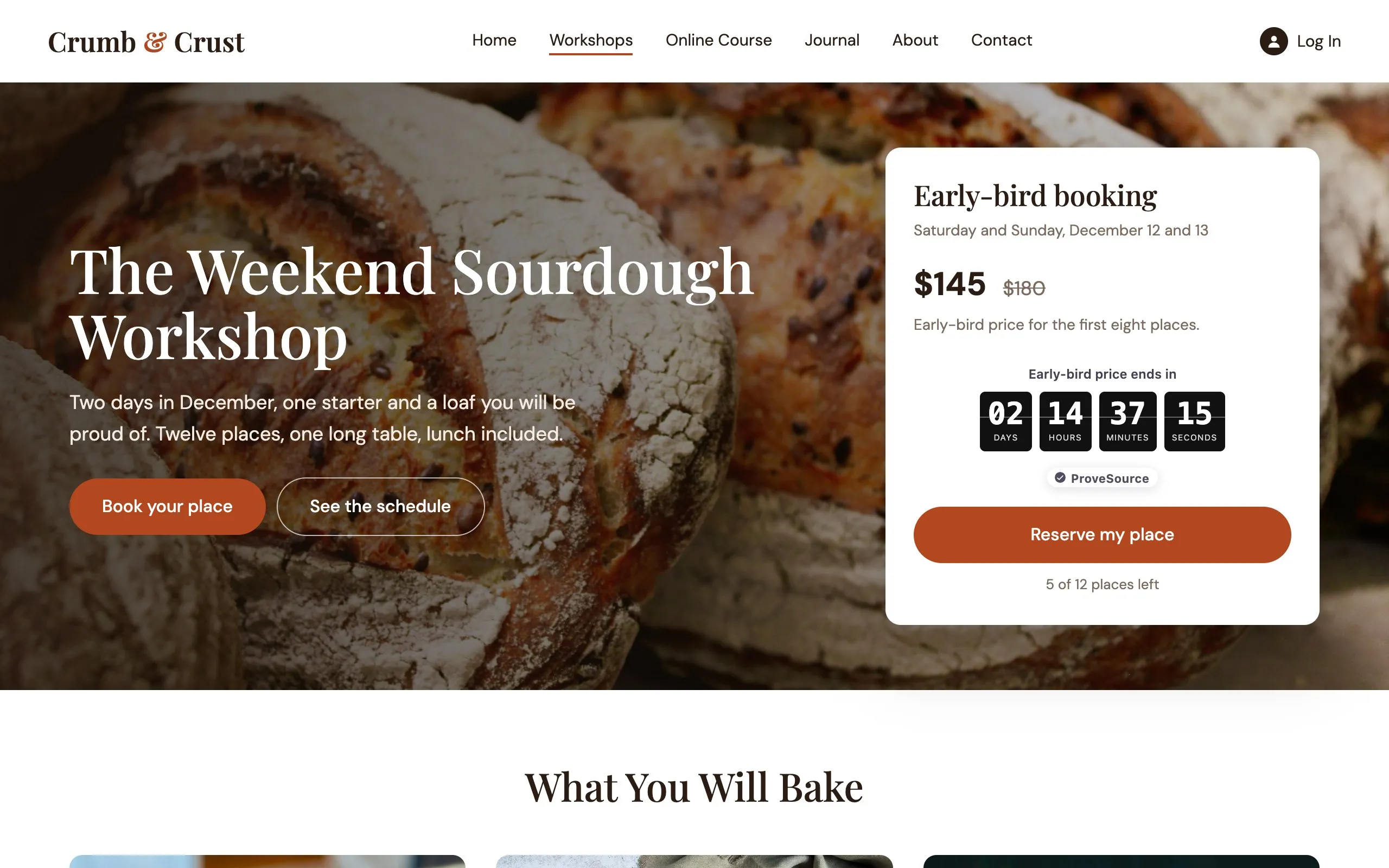
- A set time after each visitor first sees it for an evergreen timer, from 1 minute to 30 days. Each new visitor gets their own deadline.
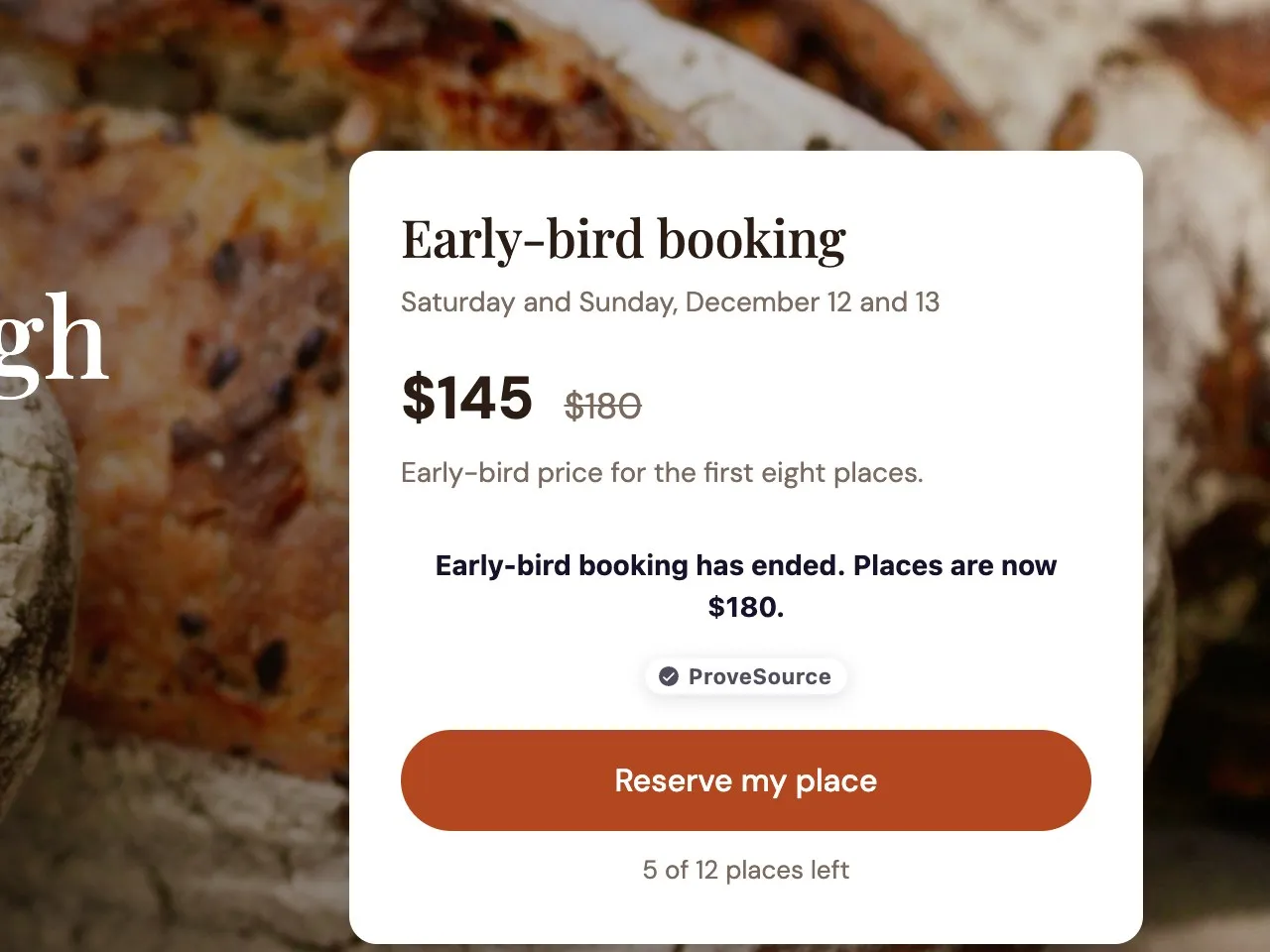
Then decide the ending. When it ends, show replaces the digits with a line of your own, and Hide it when it ends removes the timer. Switch the timer on and open its install step. The code is one div and one script tag. Copy both lines.
Add the timer in the Wix Editor
These are Wix’s steps from Embedding a Site or a Widget:
- Open the page in the editor and click Add Elements on the left.
- Click Embed Code, then Popular Embeds, then Embed HTML.
- Click the embed on your page, then Enter Code.
- Paste the two lines from Boost under Add your code here and click Apply.
- Drag the embed to where the timer should sit, for example next to the offer on a sale page, and resize it until the whole timer shows.
- Publish the site.
Add the timer in Wix Studio
The Studio Editor calls the same thing an HTML iFrame. From Adding an HTML iFrame Element:
- Click Add Elements on the left side of the editor.
- Click Embed & Social, then Embed Code.
- Click Enter Code, paste the two lines from Boost into the text box and click Apply.
- Place and resize the element, then publish.
Because you edit the timer in Boost, changing the date or the style later does not mean opening the Wix editor again. Save the change in Boost and the page shows it on the next view.
What the embed changes
Wix shows embedded code inside a frame, and the Studio article says that frame is sandboxed to protect visitors from side effects of custom code. Three things follow from that.
The frame has a fixed size. Wix’s mobile article says content larger than the frame gets cut off and shows scroll bars. Size the embed to the timer, not the other way round.
Use a message or the hide switch for the ending. Boost can also send visitors to a page when the timer ends, but in a sandboxed frame that page loads inside the embed box, not in the visitor’s tab. On Wix, leave When it ends, send visitors to empty.
An evergreen timer remembers each visitor in their browser, inside that frame. Chrome keeps it. Safari treats storage in a frame from another domain as temporary: WebKit’s tracking prevention policy makes it “ephemeral”, meaning it is gone once the visitor quits the browser. A Safari visitor who comes back the next day can get a fresh clock. For a deadline that must hold for everyone, use a fixed date.
Keep an evergreen timer honest
An evergreen timer is fair when the offer really ends for that visitor. The FTC’s 2022 dark patterns report names countdown timers on offers that are not actually time-limited as a deceptive design. A welcome discount that is valid for 24 hours after the first visit is a normal offer. A discount that still works after the clock runs out is not, so end the offer when the timer ends, and show the message that says so.
A countdown bar on every Wix page
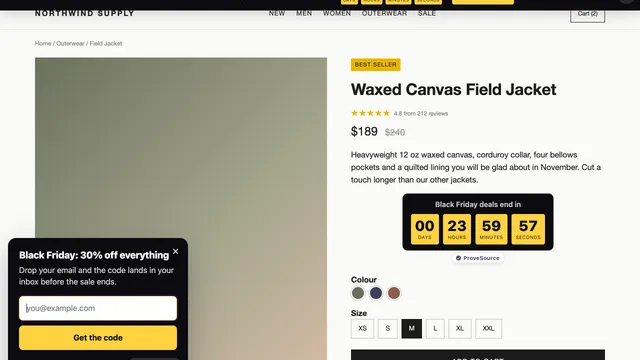
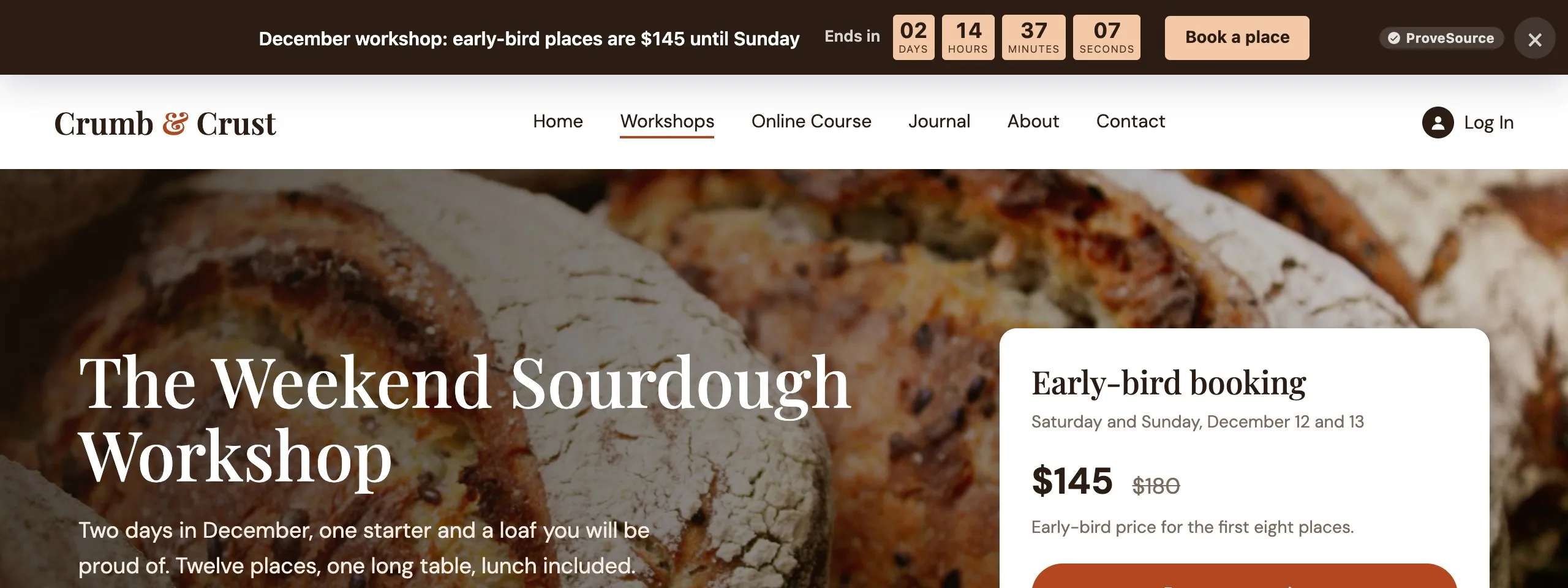
An embed sits on one page. A sitewide sale needs the deadline on every page, and for that Boost has an announcement bar: the offer, a countdown and a button, pinned to the top or bottom of the site, with Show from and Show until dates so it turns itself on when the sale opens and off when it closes.
A bar is not placed in the page, so it does not go in an embed. It loads from the Boost site tag, which goes into Wix’s Custom Code. Wix’s steps:
- Go to Settings in your site’s dashboard and click Custom Code in the Development & integrations section.
- Click + Add Custom Code and paste the Boost site tag.
- Give it a name, choose All pages, and under Place Code in choose Body - end.
- Click Apply.
Custom Code has a condition that the embed does not. Wix’s article says the site must be published and have a connected domain, and Wix’s free site FAQ says connecting a custom domain requires upgrading to a plan. On a free Wix site, use the embed from method 2.
The announcement bar page shows the free shipping and launch versions, and the countdown timer page shows the timer styles.
Method 3: Wix App Market countdown apps
If you would rather install something from inside Wix, the App Market’s Clock category listed 57 apps when we read it. The first two on that page:
Countdown Timer by POWR was rated 3.6 from 876 reviews. It counts down or up, can show as a bar at the top or bottom of the site, and can repeat daily or weekly. The free plan covers 1 counter per site in a header or banner layout. Auto-repeat starts on the Starter plan and per-visitor countdown control on the Pro plan, and each paid plan has a 7-day free trial.
Profy Countdown Timer Bar by Apps Jar was rated 4.6 from 276 reviews. It has three timer types: a countdown to an end date, a fixed duration that can restart, and a daily hour window. It shows as a sticky bar or in a section of a page, in 5 designs. The free plan covers 1 countdown timer, and Premium has unlimited timers and a popup bar.
Both carry the Verified by Wix badge. The listings were read on 23 November 2026. Ratings and plans change, so check the listing before you install.
Timer ideas for Black Friday, Christmas and launches
Black Friday 2026 is Friday 27 November and Cyber Monday is Monday 30 November. A sale that runs through the weekend ends at 23:59 on the 30th. Put a fixed-date timer next to the offer on your sale page and your home page, set to hide when it ends, and if your site has a connected domain, a bar on every page with Show until set to the same minute. Our Black Friday marketing ideas post has the rest of the plan, and the Black Friday popup page has the ready-made bars, popups and timers.
For Christmas, the useful countdown for a store is to the last order date, not to 25 December. Take the cut-off your carrier publishes, count down to it (“Order in the next 2 days for delivery before Christmas”), and let the message switch to a gift card line when it ends.
For a launch or a course enrolment, count down to the opening with a fixed date and let the timer show a line like “Enrolment is open” when it ends. For a welcome offer, use an evergreen timer of 24 hours next to the discount code, and keep the limit real.
On a WordPress site with Divi the steps are different, and our Divi countdown timer guide covers them.
Make it work on mobile
Wix says an embed added on desktop may display differently on the mobile version of the site. Its article on HTML code on mobile gives two fixes.
Resize the frame in the mobile editor until the whole timer shows. A Boost timer is compact, and its Size setting goes from Small to Huge, so pick a smaller size if the frame has little room.
If it still does not fit, hide the desktop embed on mobile and add a second one. In the mobile editor click Add, then Embed Code, then Embed HTML, and paste the same two lines. Wix notes that elements added from the mobile editor are mobile-only, so the two embeds never show together.
Check the published site on a real phone, not only the editor preview.
Wix countdown timer not showing
The embed is empty
Check that both lines are in the embed, the div and the script, and that the timer is switched on in Boost. Wix only displays code that loads over HTTPS. The Boost code does.
The timer is cut off or has scroll bars
The frame is smaller than the timer. Resize the embed on desktop and again in the mobile editor.
The bar does not show
Custom Code needs a published site with a connected domain. Check both, then check that the code is set to All pages and that the bar is switched on in Boost with dates that include today.
An evergreen timer says it has ended while you test it
Your browser remembers your first visit, which is how an evergreen timer keeps one deadline per visitor. Open the page in a private window to see what a new visitor sees.
The Wix Events countdown is missing
It only exists on the event list, and Wix says the options in Settings depend on the choices you made in its other tabs. Open Settings, then Display, and look for the Countdown toggle.
A change in Boost does not appear
A change to the timer needs no change in Wix. Check that you saved the timer in Boost, then reload the published page.
Add a free countdown timer to your Wix site
The Boost free plan includes 3 widgets and 1,000 views a month with every feature, which covers a timer, a sale bar and a popup on a small site, with a small ProveSource badge on each. Pro is $24 a month or $195 a year for unlimited widgets and views with no badge. You can upgrade for a sale month and cancel after.
Make a free countdown timer, or see everything else Boost can put on a Wix site.
Frequently asked questions
Does Wix have a built-in countdown timer?
Only inside Wix Events, where the event list can show a countdown until an event starts. Wix’s help centre documents no countdown element for a sale or a launch, and says Wix Promos cannot create limited time offers with a countdown clock. For those you paste a timer into an HTML embed or install an app from the Wix App Market.
How do I add a countdown timer to Wix for free?
Create the timer on the free ProveSource Boost plan and copy its install code. In the Wix Editor click Add Elements, Embed Code, Popular Embeds, then Embed HTML, click Enter Code and paste the code. Resize the box until the whole timer shows, then publish the site.
Can a Wix countdown timer be evergreen?
The Wix Events countdown cannot, because it counts to an event’s start. A Boost timer can start when each visitor first sees it and run for 1 minute to 30 days. On Wix it runs inside an embed, where Safari forgets the start time when the browser is closed, so use a fixed date for a deadline that must hold for everyone.
Do I need a Wix Premium plan to add a countdown timer?
Not for a timer in an HTML embed. Wix’s help article for the embed lists no plan requirement. A bar on every page goes through Custom Code, which needs a published site with a connected domain, and Wix only connects a custom domain on a paid plan. The Custom Element needs a Premium plan too.
Why is my Wix countdown timer cut off on mobile?
The HTML embed is a frame with a fixed size. When the timer is larger than the frame, Wix cuts it off or shows scroll bars. Open the mobile editor and resize the embed until the whole timer shows, or hide the desktop embed on mobile and add a second, mobile-only embed there.
Is the Boost countdown timer free?
Yes. The free plan includes 3 widgets and 1,000 views a month with every feature, fixed-date and evergreen timers included, and shows a small ProveSource badge. Pro is $24 a month or $195 a year for unlimited widgets and views with no badge.