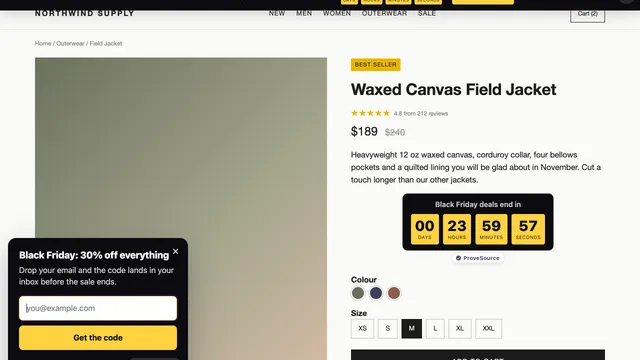
Divi Countdown Timer: 4 Ways to Add One, Including a Free Evergreen Timer

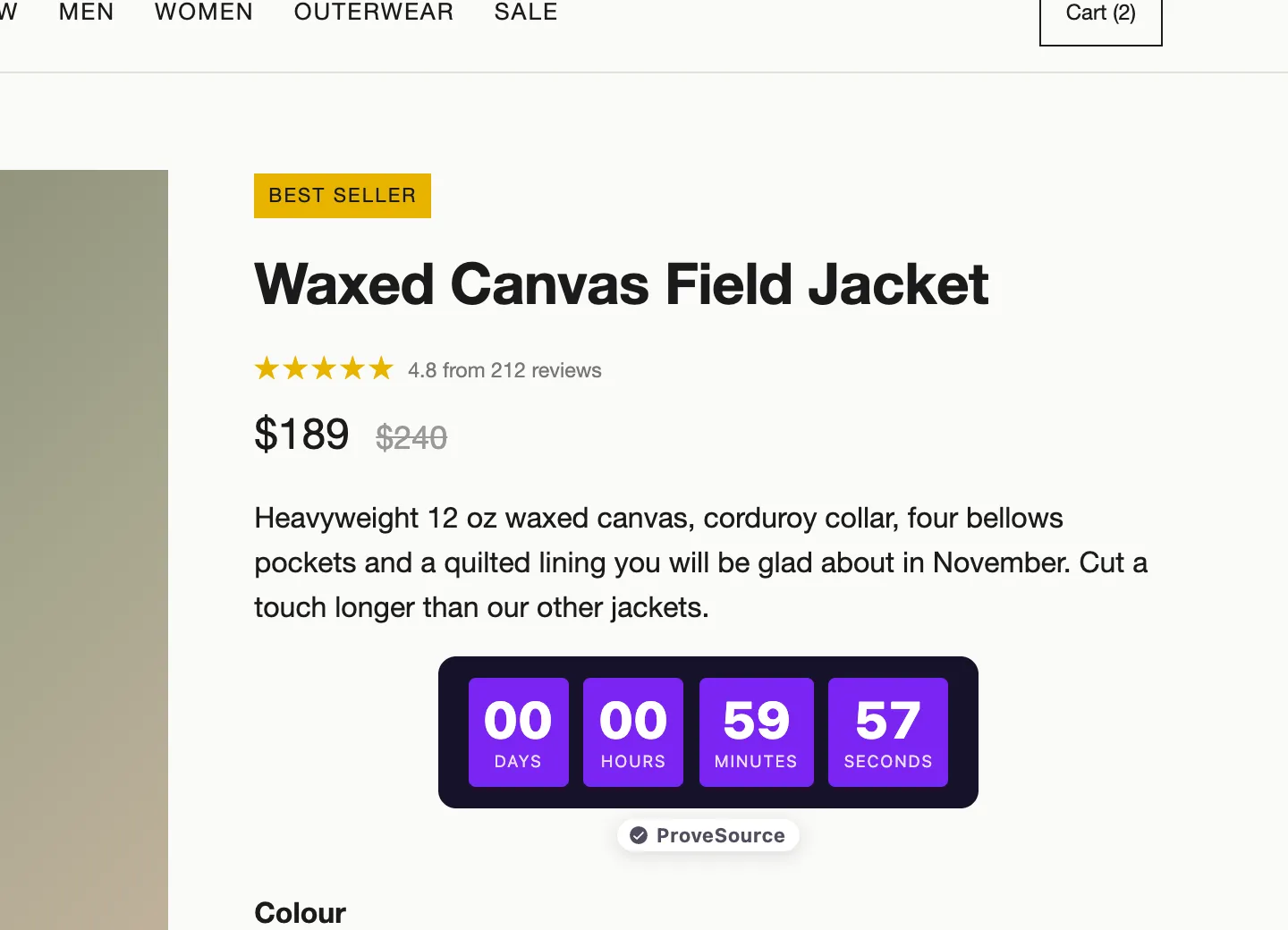
In this article
- Which Divi countdown timer do you need?
- Method 1: Divi’s built-in Countdown Timer module
- Method 2: a free evergreen countdown timer in Divi with Boost
- Method 3: a countdown bar at the top of every page
- Method 4: paid Divi countdown plugins
- Black Friday and Christmas countdown setups
- Divi countdown timer not showing, or showing the wrong time
- Add a free evergreen countdown to your Divi site
- Frequently asked questions
Divi has a countdown timer built in, and for a timer that counts to one date on one page it is all you need. Add the Countdown Timer module, set the date, done.
It stops being enough in three cases. You want an evergreen timer that gives each visitor their own deadline. You want something to happen when the clock reaches zero. Or you want the countdown in a bar across every page instead of inside one layout. The built-in module comes first below, then a free way to do the other three, then the paid Divi plugins. Each has its exact steps, and the last section fixes a timer that shows the wrong time or does not show at all.
One disclosure: ProveSource Boost, used in methods 2 and 3, is our product. Method 1 needs nothing from us.
Which Divi countdown timer do you need?
| Option | Price | Fixed date | Evergreen | When it reaches zero | Where it shows |
|---|---|---|---|---|---|
| Divi Countdown Timer module | Included with Divi | Yes | No | Digits stop at zero. Hide it with a Date & Time condition | Where you place the module |
| ProveSource Boost | Free for 3 widgets and 1,000 views a month. Pro $24 a month | Yes | Yes, 1 minute to 30 days per visitor | Shows your message, hides, or sends the visitor to a page | Where you place the shortcode, or as a bar on every page |
| Divi Timer Pro | $25 a year, or $59 once for one site | Yes | Yes, plus auto-restart | Redirect, hide, message, button, show or hide other Divi elements | Where you place the module |
| Divi Pixel Countdown | From €49 a year, with 50+ other modules | Yes | Not stated in its docs | Continue, stop, forward to a URL, run JavaScript, replace with HTML | Where you place the module |
Plugin prices and features were read on each vendor’s own page on 10 November 2026.
Method 1: Divi’s built-in Countdown Timer module
Use this for a product launch, an event, a webinar or a sale with one end date.
In Divi 4:
- Open the page and click Use The Divi Builder.
- Add a row, click the gray plus icon inside it and pick Countdown Timer. The module list is searchable.
- On the Content tab, fill in Title (“Sale ends in”) and pick the day and time in Date.
- On the Design tab, style Title Text, Numbers Text, Separator Text and Label Text.
- Save the page.
Divi 5 works the same way. The title and the date and time sit together in the Text group of the Content tab. Elegant Themes documents the module for Divi 4 and for Divi 5.
Two things about this module are not obvious from the builder.
The timer runs on your site’s time zone, not the visitor’s. The help text on the Date field says the countdown is “based on your timezone settings in your WordPress General Settings”. If your site is set to UTC and you are in New York, a sale you meant to end at midnight on 30 November ends at 7 pm that evening, five hours early.
Nothing happens at zero. Neither help article lists a setting for the end of the countdown, and in Divi 4 the module stays on the page with every digit at zero. A row of zeros next to a “Sale ends in” title on 1 December tells visitors the site is not looked after.
Hide the Divi timer when the countdown ends
Divi can do this without a plugin, through its condition options:
- Open the settings of the Countdown Timer module, or of the section that holds it.
- Go to the Advanced tab, open Conditions and click Add Condition.
- Choose Date & Time, set Display Only If Current Date to Is Before, and enter the same date and time as the timer.
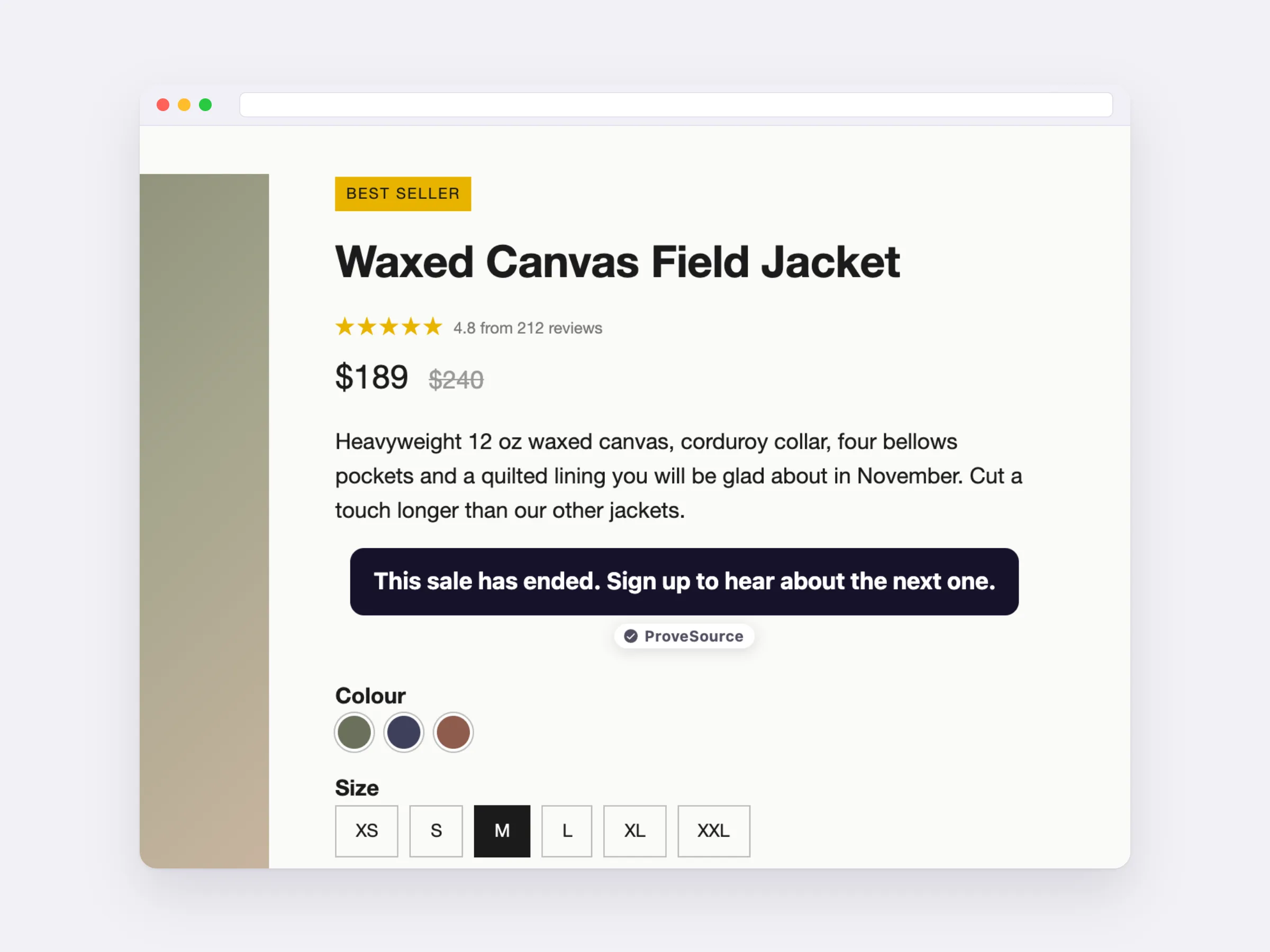
To show something else afterwards, duplicate the section, change its condition to Is After and replace the timer with a “This sale has ended” line or an email signup. Elegant Themes walks through this in its tutorial on time-conditional content. Divi 5 has the same Conditions group under the Advanced tab. Its help article does not list every condition, so confirm Date & Time is there in your version before you rely on it.
A condition is checked on the server when the page is built. If a caching plugin serves a copy of the page saved before the deadline, visitors keep seeing the timer. When the feature launched, Elegant Themes’ Nick Roach wrote in the release post’s comments that conditions which change with dynamic data “will need to be excluded from cache plugins”. Exclude the page from your cache, or clear the cache right after the deadline.
Method 2: a free evergreen countdown timer in Divi with Boost
An evergreen timer starts when each visitor first sees it. Set it to 24 hours and every new visitor gets their own 24 hours. The built-in module cannot do this, because it only knows one date.
A Boost timer does both. Under Counts down to you choose A fixed date and time or A set time after each visitor first sees it, from 1 minute to 30 days. The start is saved in the visitor’s browser, so a reload does not reset the clock. You also decide the ending: a message in place of the digits, Hide it when it ends, or When it ends, send visitors to a page.
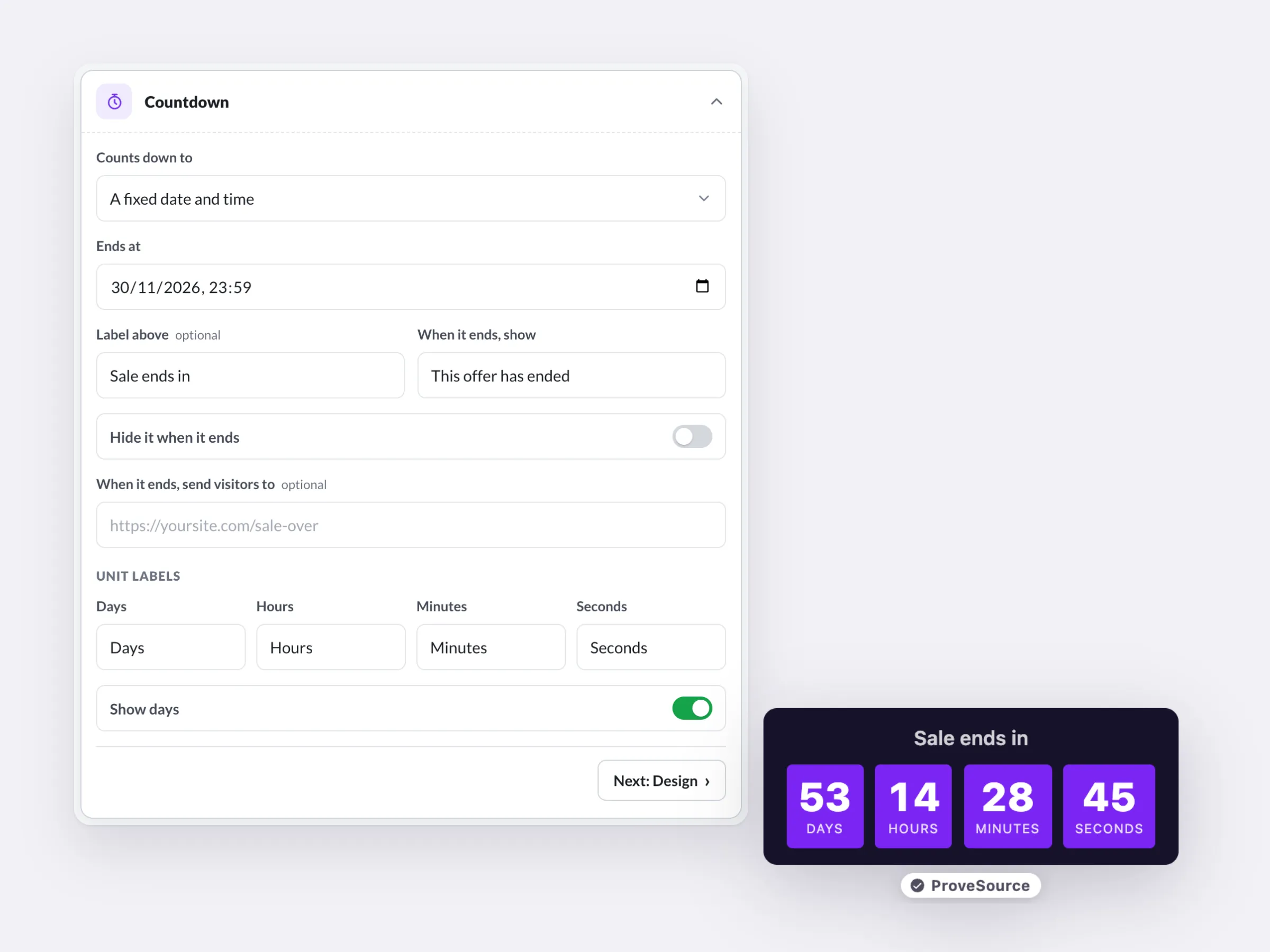
On a Divi site, the setup is five steps:
- Create a countdown timer in Boost. Pick boxes, plain digits or a flip clock, set your colors and the deadline, and switch it on.
- In WordPress, go to Plugins, Add Plugin, search for ProveSource Boost, then install and activate it.
- Open Boost in the WordPress menu and click Connect with Boost. Approve the site.
- The Boost page now lists your widgets. Copy the shortcode next to your timer. It looks like
[provesource_boost key="WIDGET_KEY"]. - In the Divi builder, add a Code module where the timer should sit, for example under the price or above the buy button, and paste the shortcode into it. Save.
The plugin has a block for the WordPress editor and an element for Elementor. In Divi the shortcode is the way in, and the Code module is where Divi expects shortcodes to go.
Prefer not to install a plugin? In Boost, copy the timer’s install code, which is one div and one script tag, and paste that into the Code module instead of the shortcode.
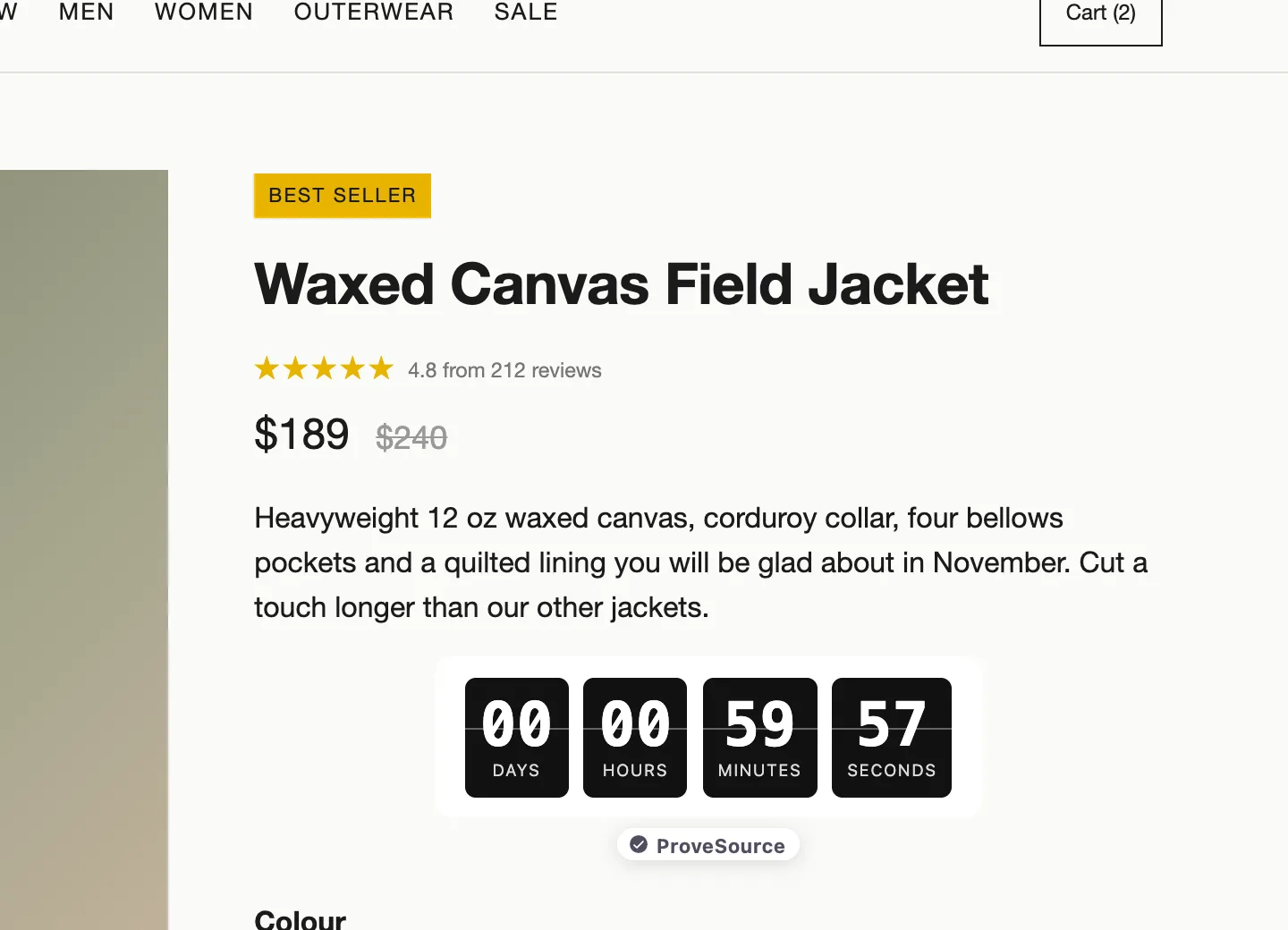
Because you edit the timer in Boost, changing the date or the style later does not mean opening the Divi builder again. Save the change and the page shows it on the next view.
Keep an evergreen timer honest
An evergreen timer is fair when the offer really ends for that visitor. If the clock runs out and the same discount still works, the timer was decoration, and the FTC’s 2022 dark patterns report names countdown timers on offers that are not actually time-limited as a deceptive design.
So make the ending real. Send the visitor to the regular-price page when it ends, or hide the offer along with the timer. A welcome discount that is valid for 24 hours after the first visit is a normal offer. A timer that restarts on every visit is not.
Method 3: a countdown bar at the top of every page
A module sits in one layout. A sitewide sale needs the deadline on every page, including the blog posts and product pages you did not build this week. Divi can do that by itself: add the Countdown Timer module to a global header under Divi, Theme Builder. It is still the fixed-date module, so it shows zeros after the deadline unless you add the condition from method 1, and each change means opening the Theme Builder.
The alternative is a bar. A Boost announcement bar carries the offer, a countdown and a button, pinned to the top or bottom of the site. With the plugin connected there is nothing to place in Divi: every bar, popup and button you switch on in Boost appears on the site by itself. The bar has Show from and Show until dates, so it turns itself on when the sale opens and off when it closes.
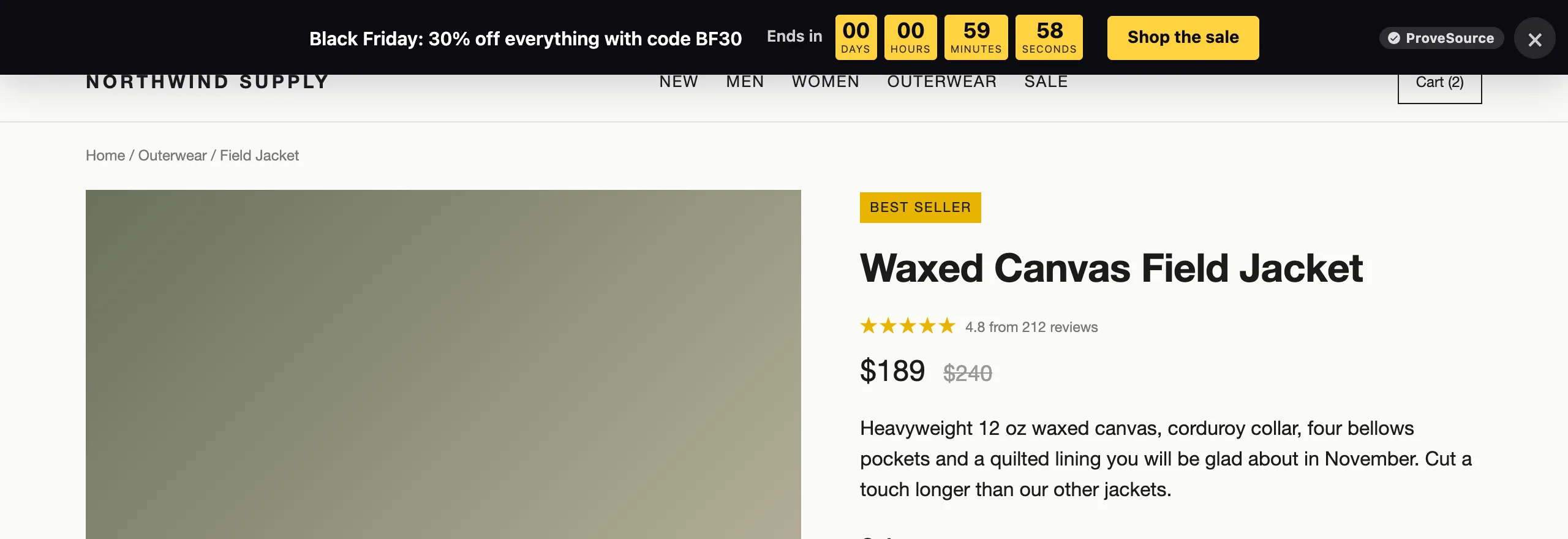
The announcement bar page shows the free shipping and launch versions, and the countdown timer page shows the timer styles.
Method 4: paid Divi countdown plugins
If you want everything inside the Divi builder and styled with Divi’s own design tabs, two paid modules are worth knowing.
Divi Timer Pro by Pee-Aye Creative has fixed-date, auto-restart and evergreen timers. The evergreen timer remembers a visitor with a cookie whose duration you set. At the end it can redirect, hide the timer, show a message or a button, and show or hide other Divi sections, rows and modules. It costs $25 a year for unlimited sites, $59 once for one site or $117 once for unlimited sites. On Divi 5, check before you buy: the product page’s FAQ says Pee-Aye’s plugins work with Divi 4 and Divi 5, the same page says Divi 5 support for this plugin is in progress, and its Divi Marketplace listing says “Compatible With Divi 4”.
Divi Pixel includes a Countdown module among its 50+ modules, and the page carries a Divi 5 Ready badge. It has block clock, flip clock and custom format styles. When the timer ends it can continue, stop, forward to a URL, run JavaScript or be replaced with HTML. Its documentation lists three date options, “Date Picker”, “Text” and “Current Time + Offset”, and does not say whether the offset is remembered for a returning visitor, so test a reload before you use it as an evergreen timer. Plans start at €49 a year for one site.
Neither is needed for a single fixed date. Divi already does that.
Black Friday and Christmas countdown setups
Black Friday 2026 is Friday 27 November and Cyber Monday is Monday 30 November. A sale that runs through the weekend ends at 23:59 on the 30th.
For Black Friday on a Divi site:
- Put a bar on every page with the offer and a countdown to 30 November at 23:59. Set Show from to the minute the sale opens and Show until to the same end time.
- Put a second countdown under the price on your best sellers. The built-in module is fine here if you add the Is Before condition. A Boost timer set to hide at the end saves you the condition and the cache check.
- Check your WordPress time zone today, not on the 27th.
Our Black Friday marketing ideas post has the rest of the plan, and the Black Friday popup page has ready-made bars, popups and timers for the sale.
For Christmas, the useful countdown for a store is to the last order date, not to 25 December. Take the cut-off your carrier publishes, count down to it in a bar (“Order in the next 2 days for delivery before Christmas”), and let it switch to a gift card message when it ends. For an event, a church service or a holiday page, a countdown to 25 December at 00:00 is a fixed date, and the Divi module does it with no extras.
Divi countdown timer not showing, or showing the wrong time
The Divi timer is a few hours off
Go to Settings, General, Timezone in WordPress. The Divi module counts to the date in that time zone. WordPress’s own documentation says to choose a city in your time zone, such as New York. A city setting follows daylight saving time. A fixed UTC offset stays where you put it.
The Divi timer shows all zeros
The date has passed, and the module does not hide itself. Change the date, delete the module or add the Date & Time condition from method 1.
The timer still shows after the deadline, even with a condition
Your caching plugin is serving a copy of the page saved before the deadline. Clear the cache or exclude that page from it.
The Boost timer does not show
A timer draws inside the page, so it needs a place. Check that the shortcode is in a Code module on that page and that the timer is switched on in Boost. If the shortcode itself shows as text, the ProveSource Boost plugin is not active: WordPress prints a shortcode as plain text when no active plugin owns it.
The Boost bar or popup does not show
Bars and popups need no place, but they do need the site-wide tag. Check that Show my Boost widgets on every page is ticked on the Boost page in WordPress and that the widget is switched on in Boost.
An evergreen timer says it has ended while you test it
Your browser remembers your first visit, which is how an evergreen timer keeps one deadline per visitor. Open the page in a private window to see what a new visitor sees.
The timer only appears after a click or a scroll
This happens when you pasted the install code by hand and a speed plugin delays scripts. WP Rocket’s Delay JavaScript execution holds scripts back until the visitor interacts with the page. Exclude the Boost script there, or use the plugin, which keeps WP Rocket, LiteSpeed Cache and Cloudflare Rocket Loader from delaying it.
A change in Boost does not appear
Clear your caching plugin’s cache once. After that, changes show without touching WordPress.
Add a free evergreen countdown to your Divi site
The Boost free plan includes 3 widgets and 1,000 views a month with every feature, which covers a timer, a sale bar and a popup on a small site, with a small ProveSource badge on each. Pro is $24 a month or $195 a year for unlimited widgets and views with no badge. You can upgrade for a sale month and cancel after.
Make a free countdown timer, or see everything else Boost can put on a WordPress site.
Frequently asked questions
Does Divi have a countdown timer?
Yes. Divi 4 and Divi 5 both include a Countdown Timer module. You give it a title and one date and time, and it counts down to that moment for every visitor. It is the right tool for a launch date, an event or a sale that ends at the same time for everyone.
Can the Divi countdown timer be evergreen?
Not on its own. The built-in module counts to one fixed date. For a timer that starts when each visitor first arrives you need something else. ProveSource Boost does it on its free plan, with a window from 1 minute to 30 days per visitor, and Divi Timer Pro is a paid Divi module with an evergreen mode from $25 a year.
What happens when a Divi countdown timer reaches zero?
The built-in module has no setting for it. The module stays on the page and the digits stop at zero. To remove it after the deadline, add a Date & Time condition to the module or its section under Advanced, Conditions, so it only displays before the same date.
Which time zone does the Divi countdown timer use?
The time zone of your WordPress site, set under Settings, General, Timezone. If the timer is a few hours off, that setting is the first thing to check. Pick a city instead of a manual UTC offset so daylight saving time is handled for you.
How do I show a countdown at the top of every Divi page?
Use a bar instead of a module. A Boost announcement bar with a countdown is pinned to the top or bottom of every page, with start and end dates, and needs no placement in the builder once the free ProveSource Boost plugin is connected.
Is the Boost countdown timer free?
Yes. The free plan includes 3 widgets and 1,000 views a month with every feature, fixed-date and evergreen timers included, and shows a small ProveSource badge. Pro is $24 a month or $195 a year for unlimited widgets and views with no badge.