How to Create a Recent Sales Notification Popup

In this article
What Is a Recent Sales Notification Popup?
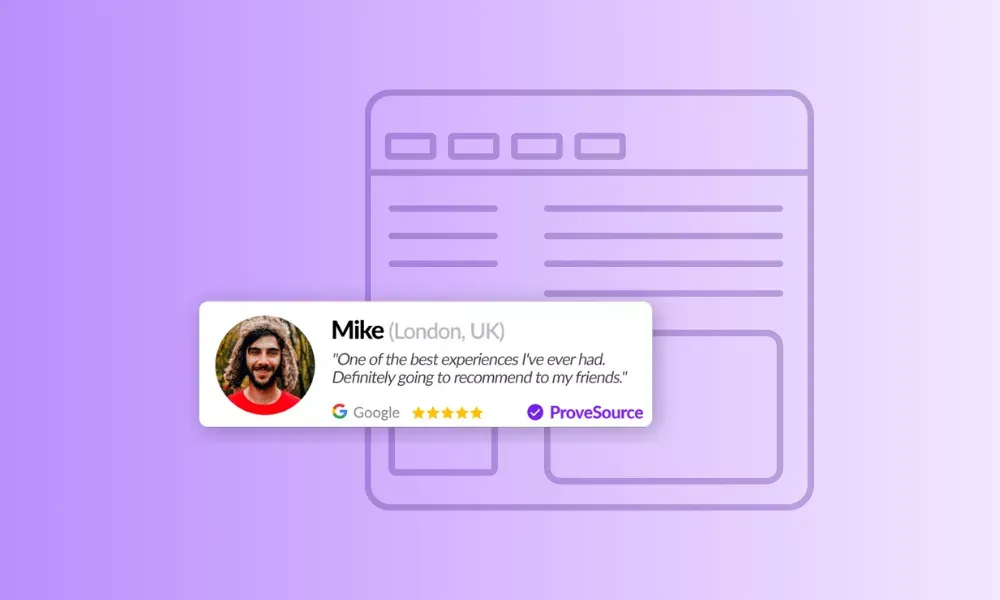
A recent sales notification popup (sometimes called a “recent purchase alert”) is a tiny, unobtrusive banner that appears on your site to showcase real-time customer activity—like “Jane from New York just bought ‘Blue Widget.’” By surfacing live purchases, these popups leverage social proof and FOMO (fear of missing out) to push hesitant visitors toward buying.
Why Use Recent Sales Notification Popups?
- Boost Conversions by 10–15 %: Displaying live sales has been shown to recover up to 15 % of abandoning visitors into buyers.
- Build Trust Instantly: Seeing real customers purchase validates your product and reduces purchase anxiety.
- Drive Urgency & Scarcity: A continuous flow of notifications signals popularity and limited availability.
- Enhance Engagement: Movement on-screen catches attention without interrupting the browsing experience.
- Easy to Implement: Modern tools like ProveSource require just a few lines of code—no developer needed.

How Recent Sales Notification Popups Work
- Data Capture: Your e-commerce platform or CRM sends each new order to ProveSource via native integration or API.
- Processing & Throttling: ProveSource filters for completeness (e.g., order value ≥ $X) and spaces out notifications for optimal UX.
- Display: A lightweight JavaScript snippet on your site listens for ProveSource events and renders each popup in the corner.
- Analytics: Track impressions, clicks, and conversion lift in your ProveSource dashboard to iterate for maximum impact.
Step-by-Step Guide to Create Your Popup with ProveSource
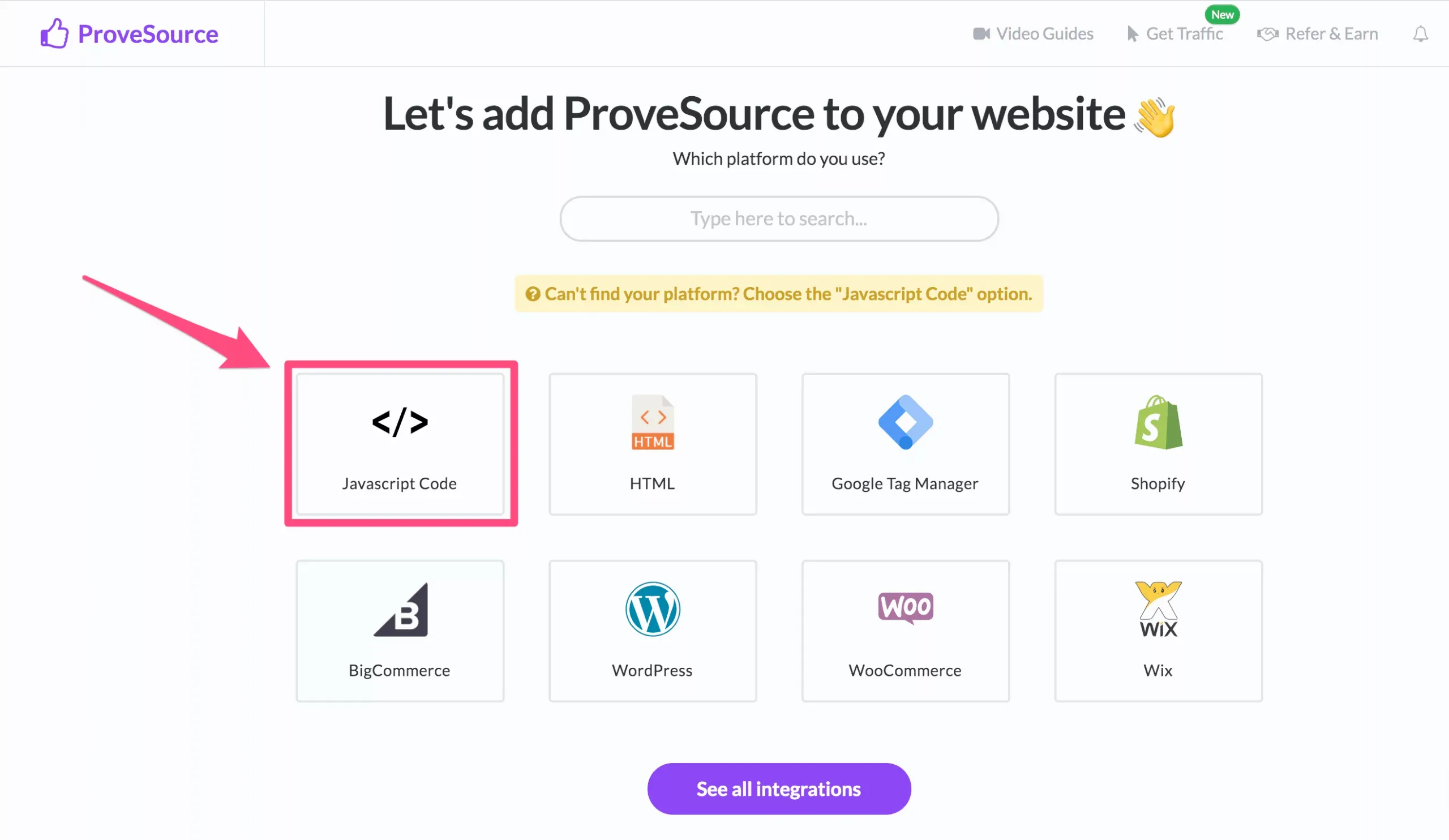
Step 1: Install ProveSource on Your Website
Make sure you’ve added the ProveSource snippet to your site’s <head> so the dashboard can push notifications to your pages.
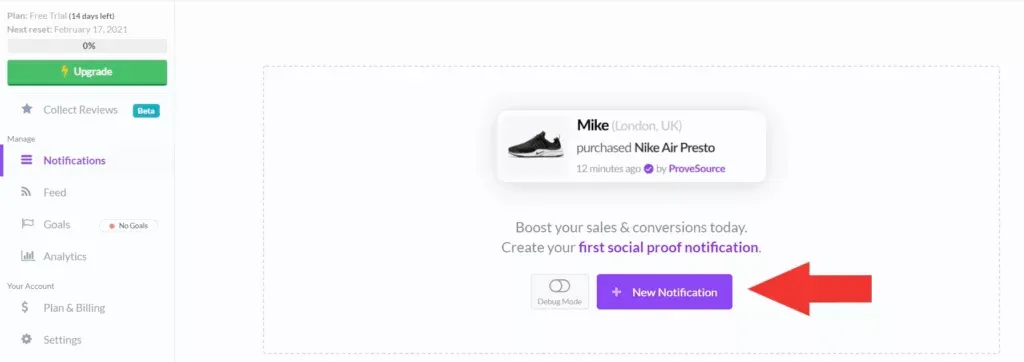
Step 2: Click “New Notification” In your ProveSource dashboard, hit the New Notification button to start a fresh campaign.
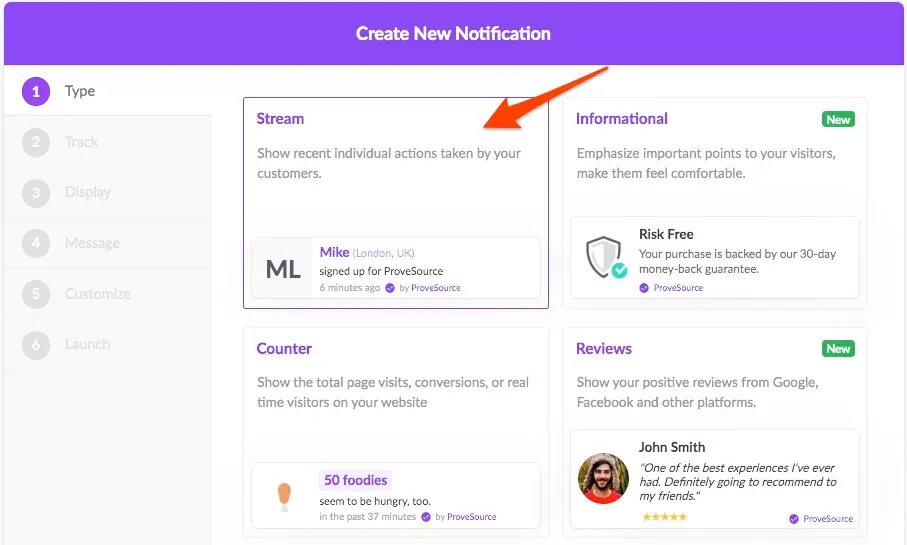
Step 3: Choose the “Stream” Notification Type Select Stream to show recent individual sales or sign-ups—e.g. “Mike (London) just purchased X.”
Step 4: Track Your Sales Events Under Track, add the data source(s) for your sales—Shopify integration, API events, or another connected platform.
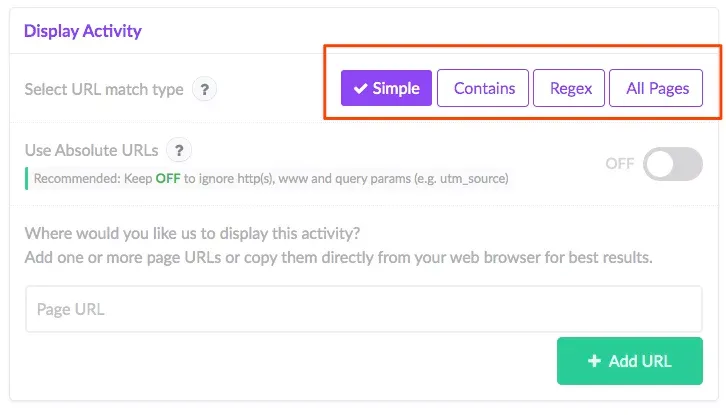
Step 5: Configure Display Rules In the Display section, specify which URLs or page match types should show this popup (e.g., product pages, checkout).
Step 6: Write Your Message Go to Message to craft the notification text (e.g., “Just Sold: {{ProductName}}”) and set the language. Use the live preview to verify formatting.
Step 7: Customize Look & Behavior Open Customize to tweak colors, position, animation, and add an optional CTA button.
Step 8 (Optional): Set a Goal If you want to measure ROI, define a goal under Goals—for example, a purchase confirmation event.
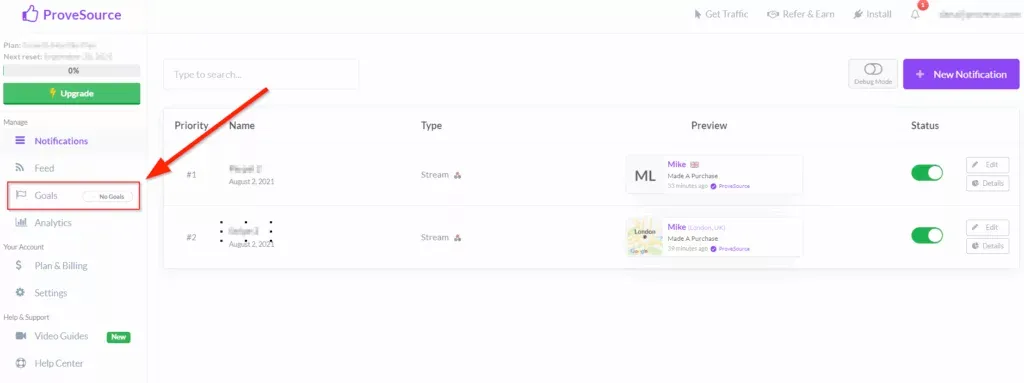
Step 9: Name & Launch Give your notification a clear internal name, then click Launch. Your recent-sales popup will go live as soon as the criteria are met.
Best Practices & Pro Tips
- Timing & Frequency: Limit popups to 1–2 per minute to avoid annoyance.
- Social Proof Validation: Pull in real customer photos or review snippets for extra credibility.
- Geographic Targeting: Highlight buyers from a visitor’s region (e.g., “John in Tel Aviv…”).
- Mobile Optimization: Keep text brief and ensure touch-friendly sizing.
- A/B Test Everything: Experiment with different headlines (e.g., “Just sold!” vs. “Happening now!”) and track which yields higher click-through rates.
Common Mistakes to Avoid
- Overloading Visitors: Flooding with 4+ notifications per minute reduces trust.
- Generic Copy: “Someone bought” feels less compelling than personalized details.
- Ignoring Analytics: If a design underperforms, tweak it instead of pausing it.
- Clashing Styles: Mismatched fonts/colors break brand cohesion and look untrustworthy.
Frequently Asked Questions (FAQs)
Will this popup slow down my site?
No. ProveSource’s script loads asynchronously and uses a tiny payload.
Can I integrate with Shopify/WooCommerce?
Yes—ProveSource offers native one-click integrations for all major platforms.
How much does it cost?
ProveSource’s Free plan includes unlimited popups with branding. Paid plans start at $19/month to remove branding and unlock advanced targeting.
Can I filter which sales appear?
Absolutely. Only show orders above a certain value or from a specific product category.
Conclusion & Next Steps
Creating a recent sales notification popup is one of the fastest, easiest ways to boost social proof, instill urgency, and recover abandoning visitors. With ProveSource, you can have a fully functional, branded notification in just 5 minutes—no coding or developer help needed.
Ready to get started?
- Sign up for ProveSource’s Free plan.
- Follow the steps above to launch your first recent sales notification popup.
- Watch your conversions climb as real-time social proof works its magic!